

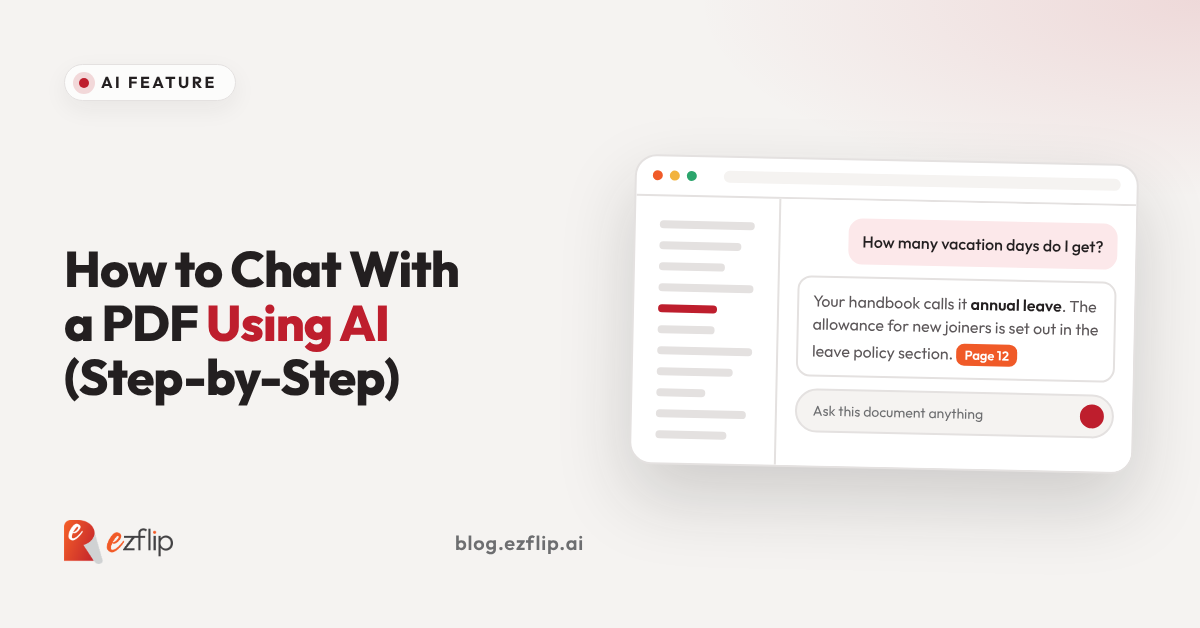
Ctrl+F is a great tool if you already know the exact word you’re hunting for. Your HR policy says “annual leave.” You search “vacation.” Zero results. You scroll through 60 pages anyway.
That is the quiet flaw of every PDF: the answer is in there, but it won’t come to you. AI chat flips that. Instead of searching for words, you ask a question, and the document answers back.
Here is how it works, how to do it step by step, and how to avoid the one mistake that makes people stop trusting it.
What does it mean to chat with a PDF?
Chatting with a PDF means asking an AI questions in plain language and getting answers drawn from the document’s own content. Instead of scrolling or searching for exact keywords, you type something like “what is the refund policy?” and the AI finds the relevant section, explains it, and ideally points to the page.
It works on the meaning of your question, not the spelling. That is why “vacation” can find “annual leave.”
Why chat with a PDF instead of just searching it?
Keyword search only matches the exact words you type, so it misses anything phrased differently. AI chat reads for meaning, so it can find answers however they are worded, combine details from several pages, and explain them in simple language. It turns a long document into something you can question.
Three situations where this earns its keep:
- The 90-page report you need to understand before a meeting in an hour.
- The product catalogue where a customer wants to know “which one works for a small kitchen?”
- The policy handbook where nobody remembers which page the answer lives on.
How do you chat with a PDF using AI, step by step?
Upload your PDF to a tool that supports AI chat, wait for it to process the pages, then type your question in plain language. Start with a summary, move to specific questions, and check key answers against the original page. With Ezflip, the PDF becomes a flipbook with AI chat built in.
Step 1: Pick a PDF with real text in it
AI chat reads the text inside the file. A PDF exported from Word, Canva or InDesign works well. A scan or photo of a printed page may be harder to read, so use the original digital file when you have it.
Step 2: Upload it to a chat-enabled platform
Choose a tool built for this. On Ezflip, you upload the PDF and it is turned into an interactive flipbook that readers can flip through and also ask questions.
Step 3: Start with a summary
Before you dive into details, get the lay of the land. Ask for a short summary of the whole document, or of one chapter. It shows you what the document covers and where to dig next.
Step 4: Ask specific questions
This is where the real value shows up. The sharper the question, the better the answer. Compare these:
- Weak: “Tell me about pricing.”
- Strong: “What does the Pro plan include that the Starter plan doesn’t?”
Step 5: Ask for the page, then check it
End important questions with “and which page is this on?” Then flip to that page and read the original lines. It takes ten seconds and it is the habit that keeps AI answers honest.
Step 6: Follow up like you would with a person
The chat remembers what you just asked, so you can keep going. “Can you explain that more simply?” or “What are the exceptions?” often gets you further than a perfect first question.
Step 7: Share it so others can ask too
A chat-enabled document is useful for more than one person. Share the flipbook link, and anyone who opens it can ask their own questions without reading cover to cover.
What should you ask when you chat with a PDF?
Ask questions that a skim would not answer: comparisons, exceptions, definitions, deadlines, and “what does this mean for me?” Good prompts are specific, tied to a section, and ask for the page number so you can verify the answer.
Prompts worth stealing:
- “Summarise this in five bullet points for someone who has never seen it.”
- “What are the deadlines or dates mentioned, and on which pages?”
- “What does this document not cover that I might assume it does?”
- “Explain section 4 as if I were new to this topic.”
- “List every number or percentage mentioned, with the page.”
The third one is a favourite. It surfaces the gaps, which is often the most useful thing a document can tell you.
Can you trust what an AI says about your PDF?
Mostly, with a check. AI answers are only as good as the document and the question, and a model can occasionally misread a table or fill a gap with a guess. Ask for the page number, verify anything that carries money, legal or safety weight, and treat the AI as a fast guide, not a final authority.
This is also why flipbook-based chat has an edge over a plain chat window. The source pages sit right next to the answer, so checking is one flip away, not a hunt through a separate file.
What kinds of PDFs work best for AI chat?
AI chat works best on text-rich, structured documents: handbooks, reports, manuals, brochures, catalogues, guides, proposals and course material. It is less useful for documents that are mostly images or very short, since there is little to ask about.
It also shines for any document that other people have to read. A PDF you send out is a document people skim. A PDF people can question is one they actually use.
Where does Ezflip fit in?
Ezflip is an AI-powered interactive flipbook platform. Your PDF becomes a publication that flows on any device, with features like instant summaries and AI chat, so readers can ask the document questions instead of hunting for the answer.
Want to see what your PDF says when you ask it a question?
Upload it to Ezflip and see it as an interactive flipbook in minutes. It’s free to get started.